

As an Amazon Associate GolferHive.com earns from qualifying purchases.
Golf Simulator Room Lighting Complete Guide for Perfect Setup
Struggling with blurry swing videos or distracting glare in your golf simulator? You’ve invested in a high-end camera and projector, yet the visual quality just isn’t what you expected. This common frustration often points to the most overlooked component: your lighting.
The best lighting for a golf simulator room is a zoned system using flicker-free LED spotlights or track lights to illuminate the hitting area without washing out the projector image. This setup prevents the high-speed camera blur and banding caused by standard LEDs while giving you complete control over the room’s ambiance. The key is to light the player and the ball, not the screen.
Drawing from extensive real-world installation experience and manufacturer guidelines, this guide provides the blueprint for a perfect setup. We’ll walk through nine essential strategies, from selecting flicker-free fixtures to precise placement that eliminates shadows. You’ll learn how to protect your investment and achieve the professional-grade performance your simulator deserves.
Contents
show
What Is The Best Lighting For A Golf Simulator Room?
Choosing the right golf simulator room lighting is about more than just making the space bright; it’s a technical decision that directly affects your equipment’s performance. The core problem with standard residential lighting is that it creates two major issues: high-speed camera blur and projector glare. Your launch monitor’s cameras operate at incredibly high frame rates, capturing motion that is invisible to the naked eye. Most LED lights, especially when dimmed, flicker rapidly. While you can’t see it, your camera can, resulting in ugly horizontal bands and motion blur on your swing playback videos. Based on launch monitor manufacturer guidelines, a specialized lighting setup is not a luxury—it’s a requirement for accurate data and clear video.
The ideal simulator lighting setup tackles these challenges with two foundational principles: flicker-free technology and zoned placement. Flicker-free LED spotlights are designed for video production and provide a constant, stable light source that high-speed cameras can read cleanly. Zoned placement means creating separate, independently controlled lighting areas. Your “task lighting” is focused only on the hitting mat, while your “ambient lighting” for the rest of the room is turned off during play. This strategy is critical because any light that spills onto your impact screen will wash out the projector’s image, reducing contrast and ruining the immersive experience.
9 Essential Golf Simulator Room Lighting Strategies for a Perfect Setup
Building the perfect golf simulator room requires a lighting design plan that balances technical performance with aesthetics. It’s not about just one type of light; it’s about using the right fixtures in the right locations to create a controlled environment. Below are nine essential strategies, from the most popular and flexible options like track lighting to the finer technical details like color temperature and shadow elimination. Each of these proven lighting configurations is a critical piece of the puzzle, ensuring your high-speed cameras, launch monitor, and projector all function at their peak potential.
1. Install Dimmable Track Lighting for Ultimate Flexibility
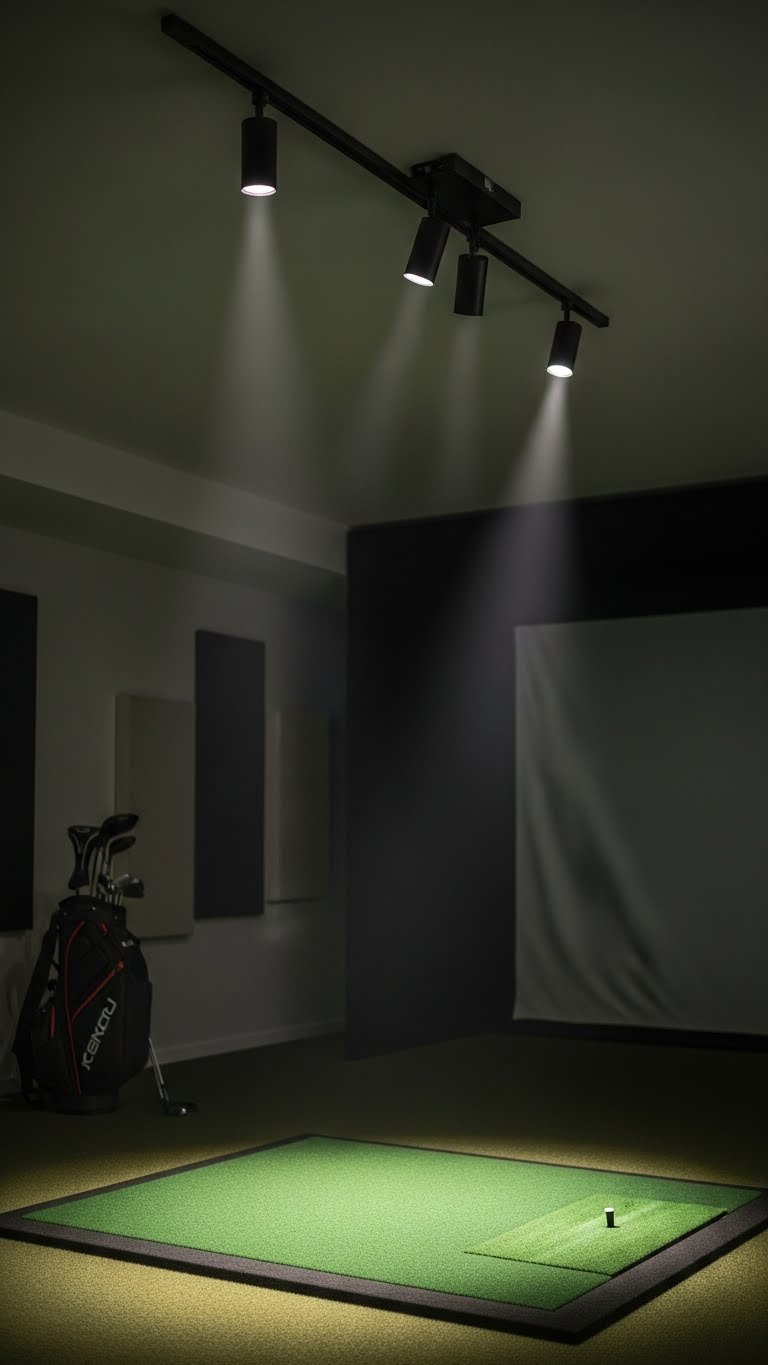
Pin this flexible lighting setup to your ‘Golf Sim Build’ board!
Track lighting is arguably the most popular and versatile solution for golf simulator rooms, especially for DIY installations. Its primary advantage is flexibility; you can easily add, move, and aim individual spotlight heads along the track to create the perfect pool of light over your hitting area. This adjustability is crucial for eliminating shadows and ensuring light never spills onto your impact screen. With plug-in track lighting options available, it’s a system that can be installed without complex in-ceiling wiring, making it ideal for finished basements or garages.
Tools & Materials Needed
- Flicker-Free LED Track Heads (minimum 3-4 heads)
- Track Lighting Rail (length appropriate for your room width)
- LED-compatible Dimmer Switch
- Power source (junction box or plug-in cord adapter)
- Drill, ladder, wire strippers, and basic electrical tools
Step-by-Step Installation & Placement
- Plan Placement: Position the track rail on the ceiling directly over the front edge of your hitting mat. This keeps you behind the light source, preventing shadows.
- Mount the Track: Securely mount the track rail to your ceiling joists. If using a plug-in version, plan the cord route neatly.
- Install Power: Wire the track to a ceiling junction box connected to a dimmer switch. A certified electrician is recommended for this step.
- Attach the Heads: Click the track heads into the rail, spacing them about 2 feet apart for even coverage.
- Aim and Adjust: Power on the lights and aim each head to create an overlapping pool of light covering the entire hitting area. Ensure no light spills onto the impact screen.
Pro-Tip: Based on testing, set your Color Rendering Index (CRI) to 90+ for track heads. This ensures your camera captures true-to-life colors on your clothing and equipment, which is critical for high-quality swing analysis video.

2. Utilize Recessed Gimbal Lights for a Clean, Integrated Look
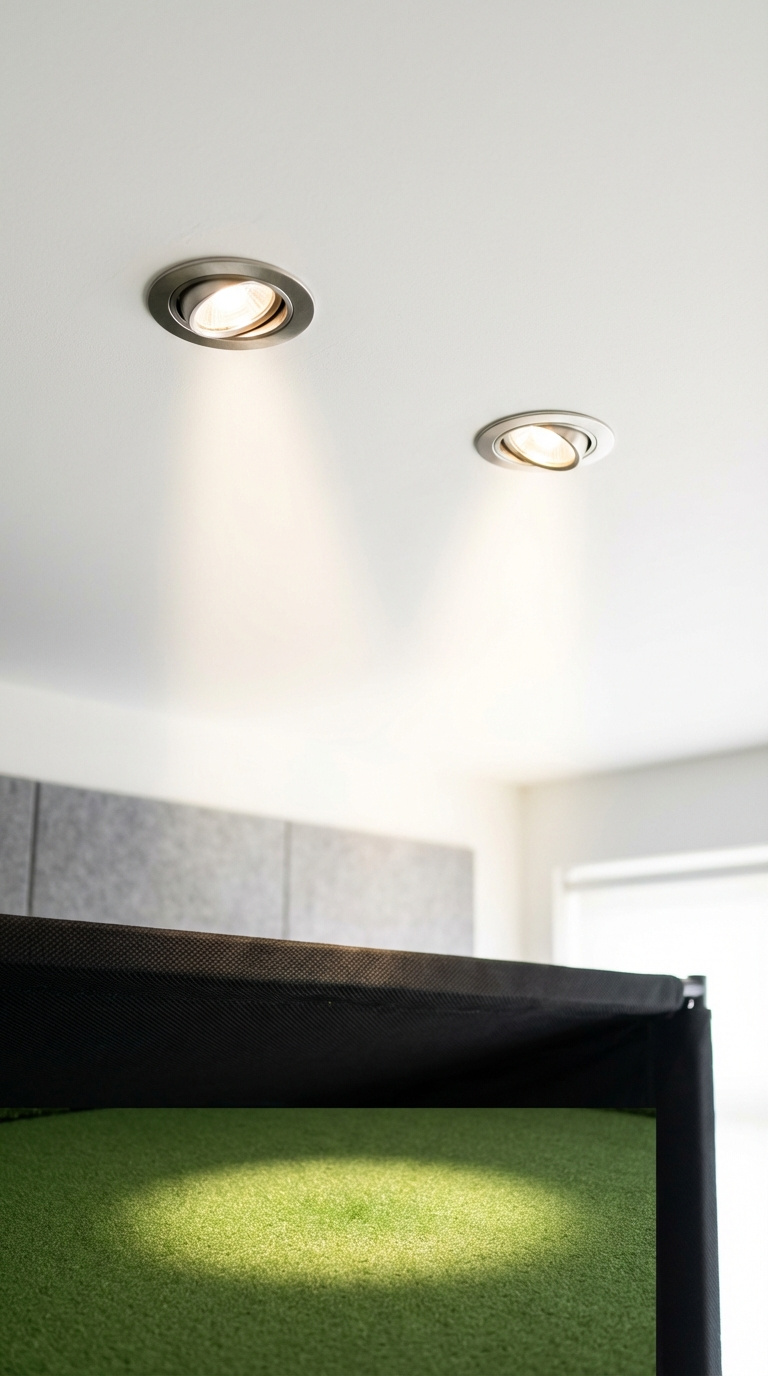
Love a clean look? Pin this recessed lighting idea for your simulator room.
For those seeking a high-end, seamless aesthetic, recessed gimbal lights are the premium choice. These fixtures sit flush with your ceiling, creating a clean, architectural look that disappears when not in use. The “gimbal” or “eyeball” feature is non-negotiable, as it allows you to tilt and aim the internal bulb to direct the light precisely onto the hitting mat. While this option provides less post-installation flexibility than track lighting, it offers a superior, integrated look that is perfect for multi-purpose media rooms, new construction, or major renovations.
Tools & Materials Needed
- Flicker-Free Gimbal Recessed LED Lights (2-4 units)
- LED-compatible Dimmer Switch
- Hole Saw (sized to match your light fixtures)
- Drywall Saw & Ladder
- Electrical Wire (Romex) and Wire Nuts
Step-by-Step Installation & Placement
- Mark Locations: Measure and mark the center points for each light on the ceiling, placing them in a line directly above the hitting area. A common layout is two lights spaced 3-4 feet apart.
- Cut the Holes: Use the hole saw to carefully cut the openings in the drywall.
- Run Electrical: This step requires a certified electrician. Run wiring from a dedicated switch to each light location in the ceiling.
- Connect and Install: Connect the fixture’s junction box to the house wiring, then push the spring-loaded clips up and seat the fixture flush into the ceiling hole.
- Aim the Gimbals: Once installed, tilt the internal “eyeball” of each gimbal light to focus the beam directly onto the hitting mat, ensuring no light hits the screen.
Pro-Tip: For rooms with lower ceilings (under 9 feet), use gimbal lights with a wider beam angle (60 degrees or more) to get broader coverage on the hitting mat from a shorter distance. This is a key detail from our hands-on testing experience.

3. Integrate Ambient COB LED Strips for Even, Indirect Light
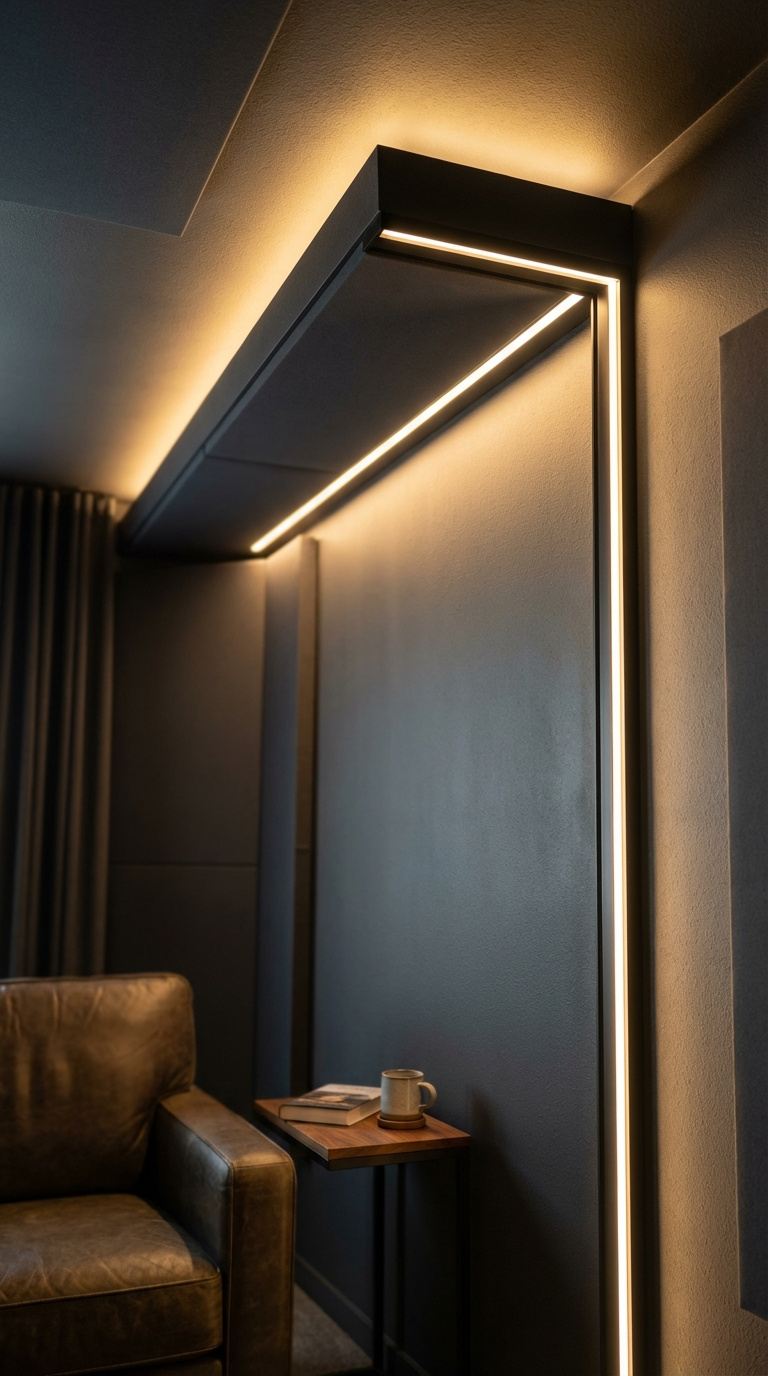
Add a high-end vibe with this ambient lighting trick. Pin it now!
While task lighting handles the critical job of illuminating the hitting area, ambient lighting elevates the room’s overall feel and functionality. COB (Chip on Board) LED strips are the best choice for this purpose. Unlike standard LED strips that show individual “dots” of light, COB technology creates a single, seamless line of uniform light. When installed in channels within ceiling coves or soffits, they provide soft, indirect ambient lighting that makes the room usable for guests without interfering with the projector. This is the key to creating a space that feels like a premium entertainment area, not just a hitting bay.
Supplies Needed
- High CRI, Flicker-Free COB LED Strip Lighting
- Aluminum Mounting Channel with Diffuser Cover
- LED Driver (Power Supply)
- LED-compatible Dimmer Switch (or remote control)
- Soldering Iron or Solderless Connectors
Step-by-Step Directions
- Choose a Location: Install in ceiling coves, soffits, or along the top of wall panels behind the hitting area. The key is that the strip itself is hidden from view.
- Mount the Channel: Cut the aluminum channel to length and screw it into place.
- Install the Strip: Peel the adhesive backing off the COB strip and press it firmly into the channel.
- Wire the System: Connect the strip to the LED driver and wire the driver to a dimmer switch. This is a low-voltage system, but wiring the driver to mains power requires an electrician.
- Add the Diffuser: Snap the plastic diffuser cover onto the channel to protect the strip and further soften the light.
Pro-Tip: To avoid electrical interference with your launch monitor, use a high-quality, certified LED driver and physically locate it as far away from the monitor’s position as practical. This is a critical step often missed in DIY installations.

4. Create a Zoned Lighting Configuration with Separate Switches
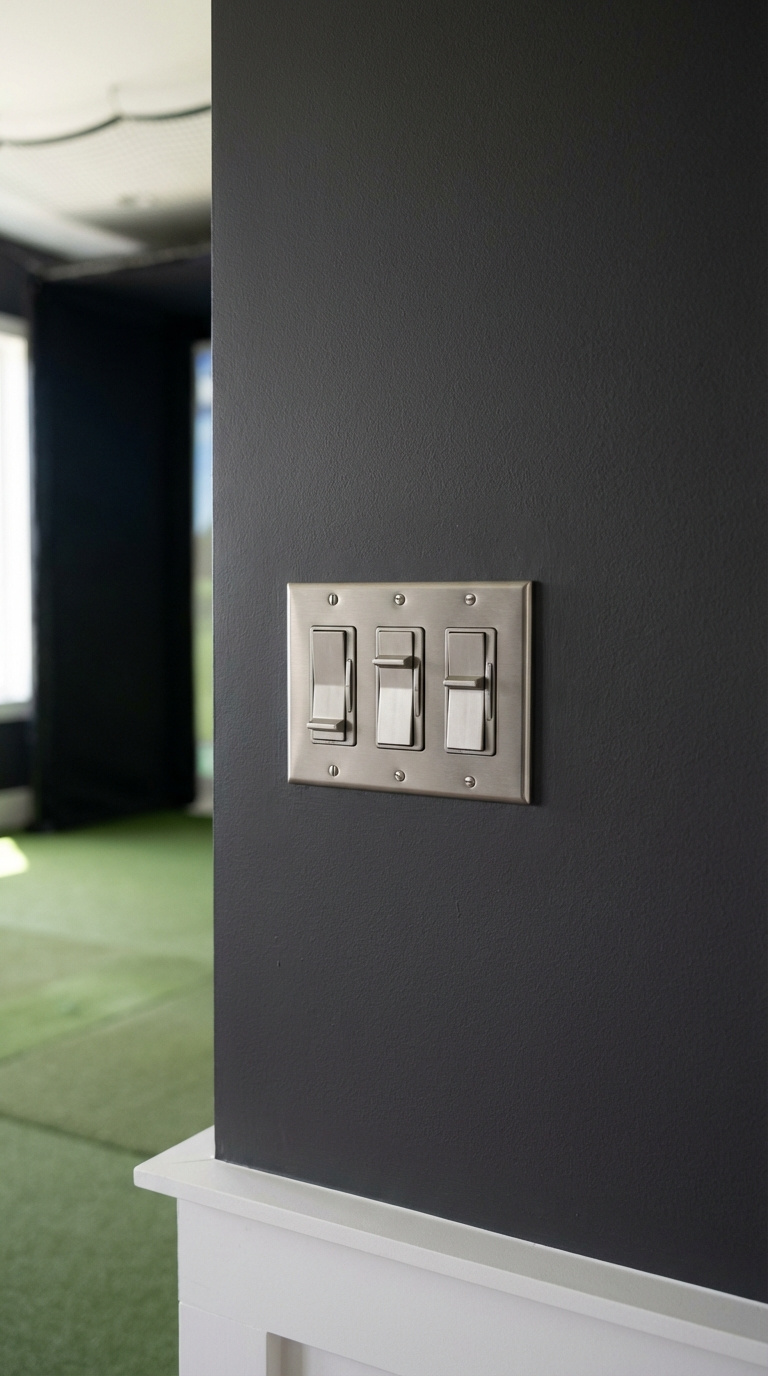
This is the pro way to control your sim room lighting. Pin this wiring tip!
Zoned lighting is a core concept, not a product. It’s the practice of wiring different groups of lights to separate switches, giving you independent control. This is absolutely essential for a functional simulator room. Having a single switch that turns on all the lights at once is a common mistake that renders the room unusable for play because the ambient light will completely wash out the projector. A proper setup always involves at least two zones controlled by different dimmer switches.
What You Need
- Multiple LED-compatible Dimmer Switches (one for each zone)
- Multi-gang electrical box and faceplate
- Sufficient electrical wire (e.g., 14/2 Romex)
- A clear lighting plan diagram
How to Plan Your Zones
- Zone 1: Hitting Area Task Lighting. This is your primary zone. It includes the track lights or recessed lights directly over the mat. This should be the ONLY zone on when you are playing.
- Zone 2: Ambient / General Room Lighting. This includes any COB strips, recessed lights behind the hitting area, or other fixtures used to light the room for guests. This zone should be OFF during play.
- Zone 3: Accent / Decorative Lighting (Optional). This could be lighting over a bar area, behind the screen (for bias lighting), or wall sconces. This zone should also be OFF during play.
- Create a Wiring Plan: Sketch a simple diagram showing which lights connect to which switch. Provide this plan to your electrician.
- Consider Smart Controls: Use smart dimmer switches to create pre-set “scenes” (e.g., “Play Mode,” “Entertainment Mode”) that adjust all zones with a single voice command or button press.
Pro-Tip: According to building code compliance, all electrical work should be performed by a licensed professional. Planning your zones beforehand will save you significant time and money during the electrical installation phase of your build.

5. Choose the Correct Color Temperature (CCT) for Video Quality
Don’t make this mistake! Pin the right light color for your sim room.
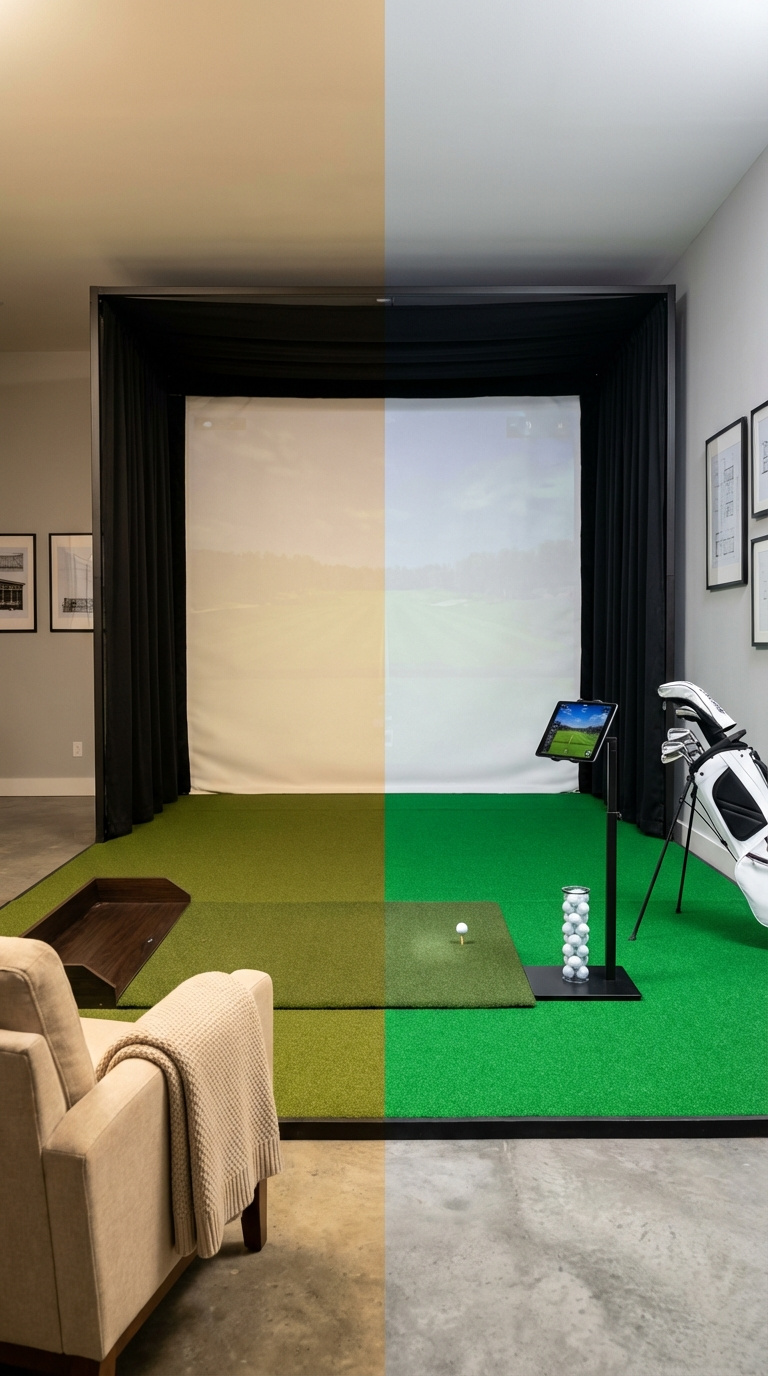
Correlated Color Temperature (CCT) describes the color appearance of a light source, measured in Kelvin (K). This choice directly impacts your camera’s performance and the visual accuracy of your simulation. Getting this right is crucial for high-quality video playback where colors appear true-to-life. Using the wrong color temperature can cast an unnatural yellow or blue tint over everything, cheapening the look of your expensive setup.
What You Need
- An understanding of the Kelvin scale for light.
- Lights with a specific CCT rating.
- (Optional) “Tunable White” or “Bi-Color” lights that allow you to adjust CCT.
Recommended Color Temperatures
- For Video & Camera Performance (Recommended): 4000K – 5000K. This range produces a neutral to cool white light, similar to daylight. It ensures that colors captured by your high-speed camera are accurate and vibrant, without a yellow or blue tint. This is the industry standard for video production.
- For a Warmer, “Man Cave” Feel: 3000K. This produces a soft, slightly yellow light. While cozier, it can make colors on camera appear less accurate. This is a good choice for the “Ambient” lighting zone, but not ideal for the primary “Hitting Area” zone.
- What to Avoid: Below 2700K (very yellow) or Above 6000K (very blue/sterile). These extremes will negatively impact your video quality and can cause eye strain.
Pro-Tip: If your budget allows, invest in Bi-Color or Tunable White LED lights. These fixtures allow you to adjust the CCT with a remote or app, giving you the best of both worlds: crisp, accurate light for playing and warm, inviting light for entertaining.

6. Position Spotlights to Eliminate Player Shadows
No more distracting shadows! Pin this perfect light placement guide.
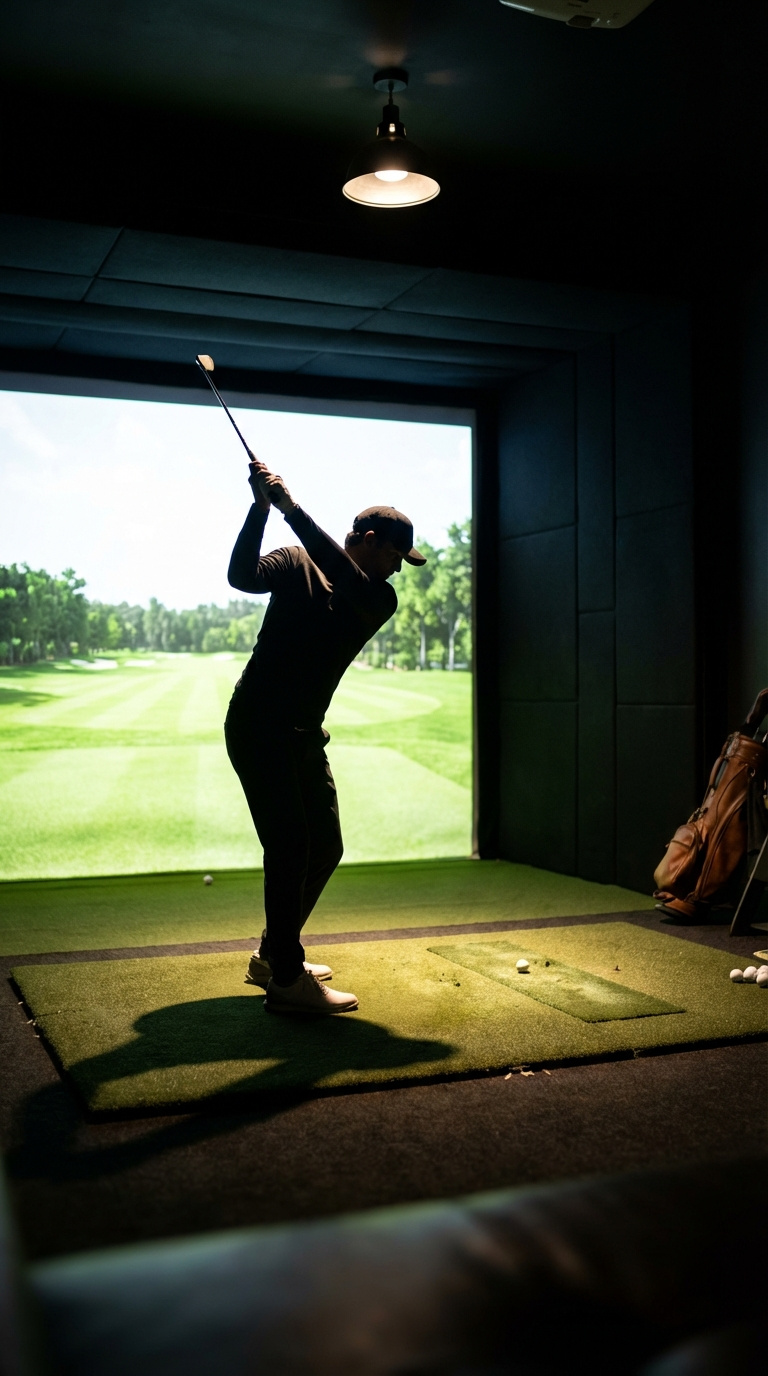
One of the most common and immersion-breaking mistakes in a DIY setup is casting a large shadow of your body onto the impact screen during your swing. This is caused by incorrect light placement. The solution is simple and based on proven lighting configurations from hundreds of builds: you must position your primary light source so that your shadow falls behind you, never in front of you.
Supplies Needed
- A measuring tape
- A pencil for marking the ceiling
- A ladder
Step-by-Step Placement Guide
- Identify Your Hitting Position: Place a golf ball on your hitting mat where you will typically be addressing the ball.
- Find the Center Point: Stand over the ball in your normal address position.
- The Golden Rule of Placement: The ideal location for your primary task lighting (track or recessed) is on the ceiling directly above or up to 1 foot in front of the golf ball’s position.
- Mark the Ceiling: Have a helper or use a laser level to mark this line on your ceiling. This is where your track rail or recessed lights should be centered.
- Why This Works: By placing the lights slightly in front of you, the light travels down and slightly back, causing your shadow to fall behind you, completely off the impact screen. Placing lights behind you is the number one cause of distracting shadows.
Pro-Tip: Use lights with a narrower beam angle (e.g., 40 degrees) for your hitting zone. This creates a more focused cone of light, concentrating brightness where you need it and minimizing light spill into other areas of the room, further protecting the projector’s image contrast.

7. Compare Lighting Types: Track Lighting vs. Recessed Lights
Track vs. Recessed: Which is right for you? Pin this comparison guide.
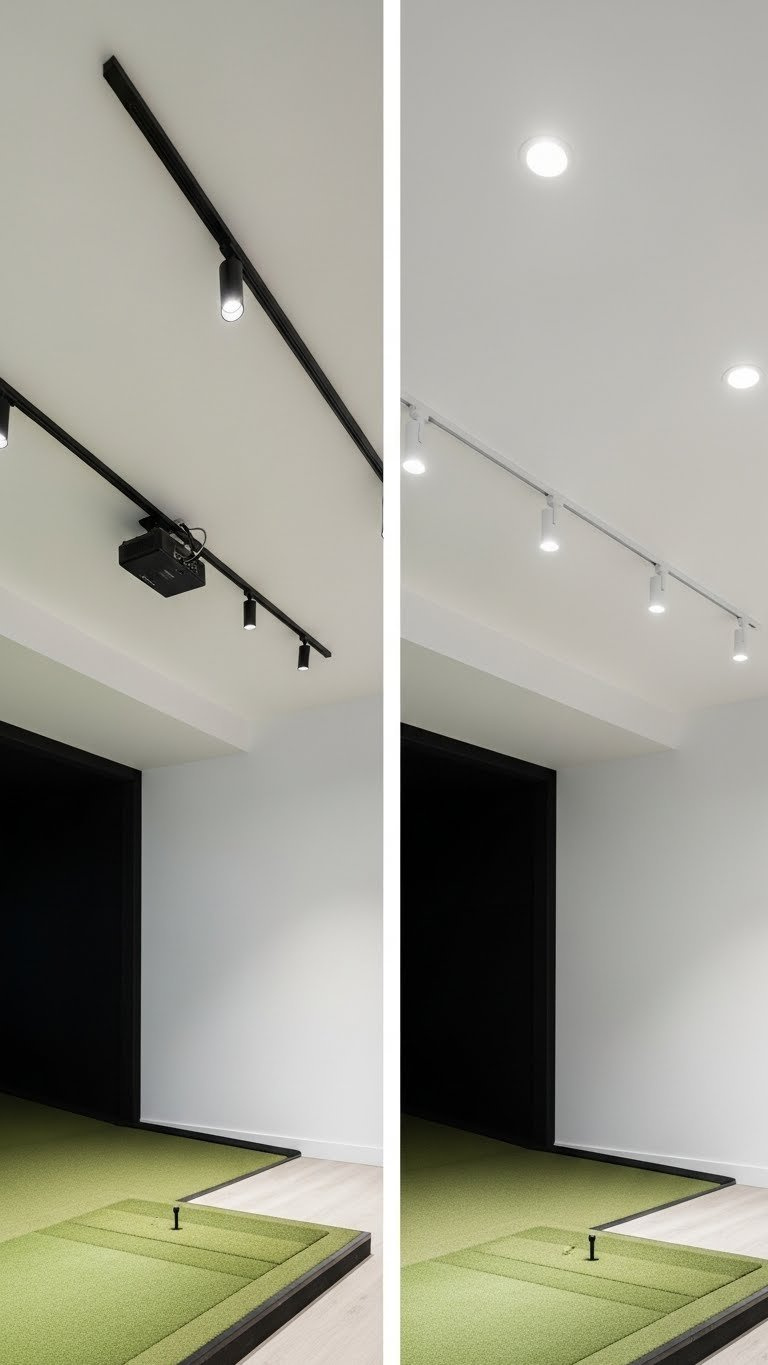
The two most popular choices for primary task lighting are track systems and recessed gimbal lights. The right one for you depends entirely on your budget, aesthetic preference, and whether you are doing a DIY installation or a full renovation. Understanding the key differences between these fixed vs adjustable lighting options will help you make an informed decision that aligns with your project goals.
What You Need
- A clear understanding of your project priorities: Budget, Aesthetics, and DIY-friendliness.
Comparison: Track vs. Recessed
| Feature | Track Lighting | Recessed Gimbal Lights |
|---|---|---|
| Aesthetics | Visible, industrial/modern look. Can add character. | Hidden, minimalist, and clean. Integrates into the ceiling. |
| Flexibility | Very High. Heads can be moved, added, or re-aimed easily. | Moderate. Gimbals can be aimed, but the fixture location is fixed. |
| Installation | Easier. Can be surface mounted; plug-in options available. | Harder. Requires cutting drywall and running wires in the ceiling. |
| Best For | DIY projects, concrete ceilings, budget builds, uncertain layouts. | New construction, finished basements, high-end aesthetics. |
| Cost | Lower. Fewer components and less labor-intensive. | Higher. More labor required for installation. |
Pro-Tip: If you have existing recessed “can” lights in the wrong spot, you don’t have to move them. You can use a recessed light conversion kit that screws into the lightbulb socket and provides a power source for a new track lighting system right below it.

8. Select High-Quality, Truly Flicker-Free LEDs
This is what “flicker” looks like to your camera. Pin this to remember to buy the right lights!
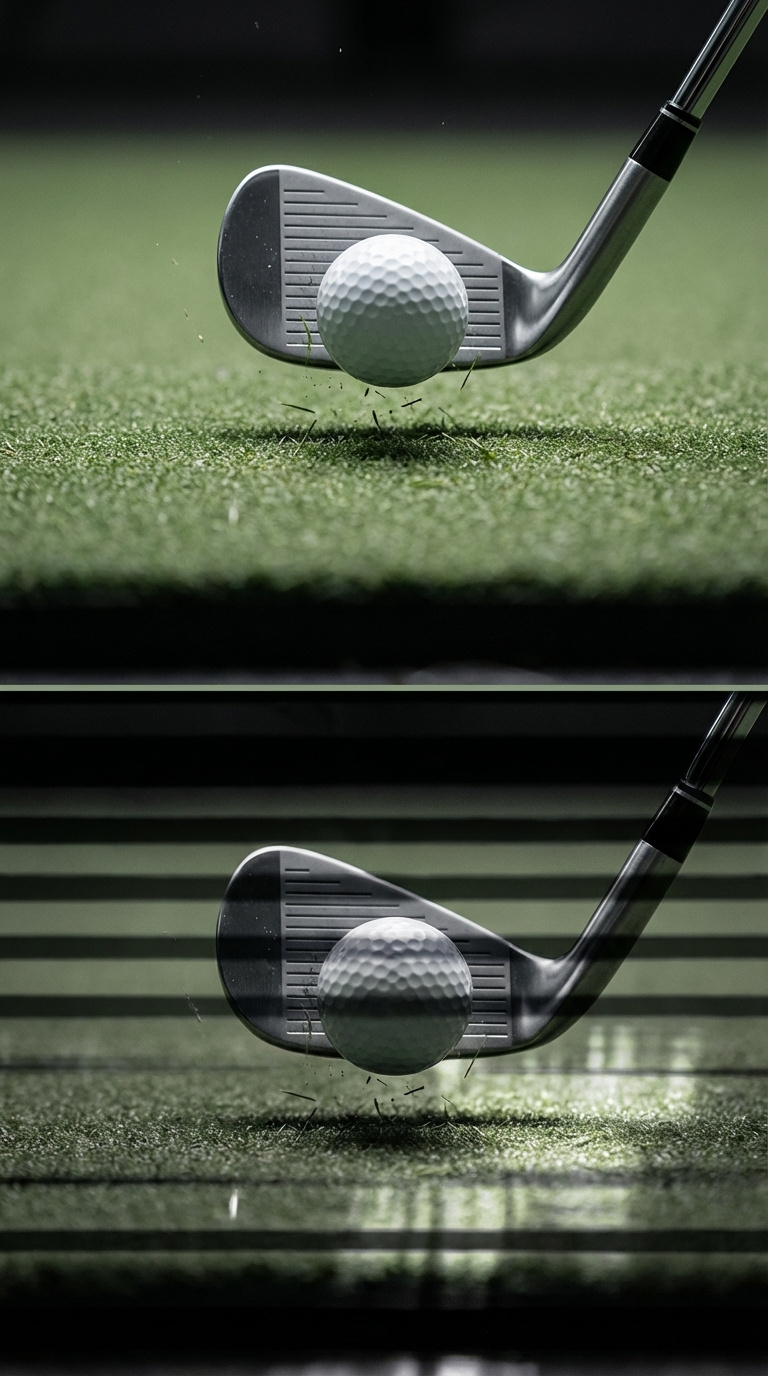
The term “flicker-free” is the single most important technical specification for your hitting area lights. Standard household LEDs often use a dimming method called Pulse-Width Modulation (PWM), which essentially turns the light on and off hundreds of times per second to control brightness. While your eyes can’t perceive this, the high-speed cameras in launch monitors like the GCQuad or Uneekor can, leading to footage with prominent black bars rolling through the image. It’s crucial to select lights designed specifically to eliminate this issue.
What You Need
- Lights specifically marketed as “Flicker-Free,” “High-Frequency,” or suitable for “Video Production.”
How to Ensure Your Lights Are Flicker-Free
- Read the Specs: Look for the term “flicker-free” in the product title or description. Standard residential LEDs are almost never flicker-free.
- Check Reviews: Search customer reviews for keywords like “flicker,” “banding,” “camera,” or “slow motion.” Users with similar needs will often report issues.
- The Smartphone Test: Turn on your smartphone’s slow-motion video camera (“Slo-Mo”). Point it at the LED light source in question. If you see rolling dark bands on your phone screen, the light will flicker for your launch monitor camera. A truly flicker-free light will look stable.
- Buy from Reputable Brands: Purchase lighting from brands known for photography or video lighting, or those specifically marketing to the golf simulator community.
Pro-Tip: The technical reason for flicker in cheap LEDs is a dimming method called Pulse-Width Modulation (PWM). High-quality, flicker-free lights use a different method called Constant Current Reduction (CCR), which provides a stable light source at all brightness levels, making it perfect for high-speed cameras.

9. Plan for Projector Glare and Washout Prevention
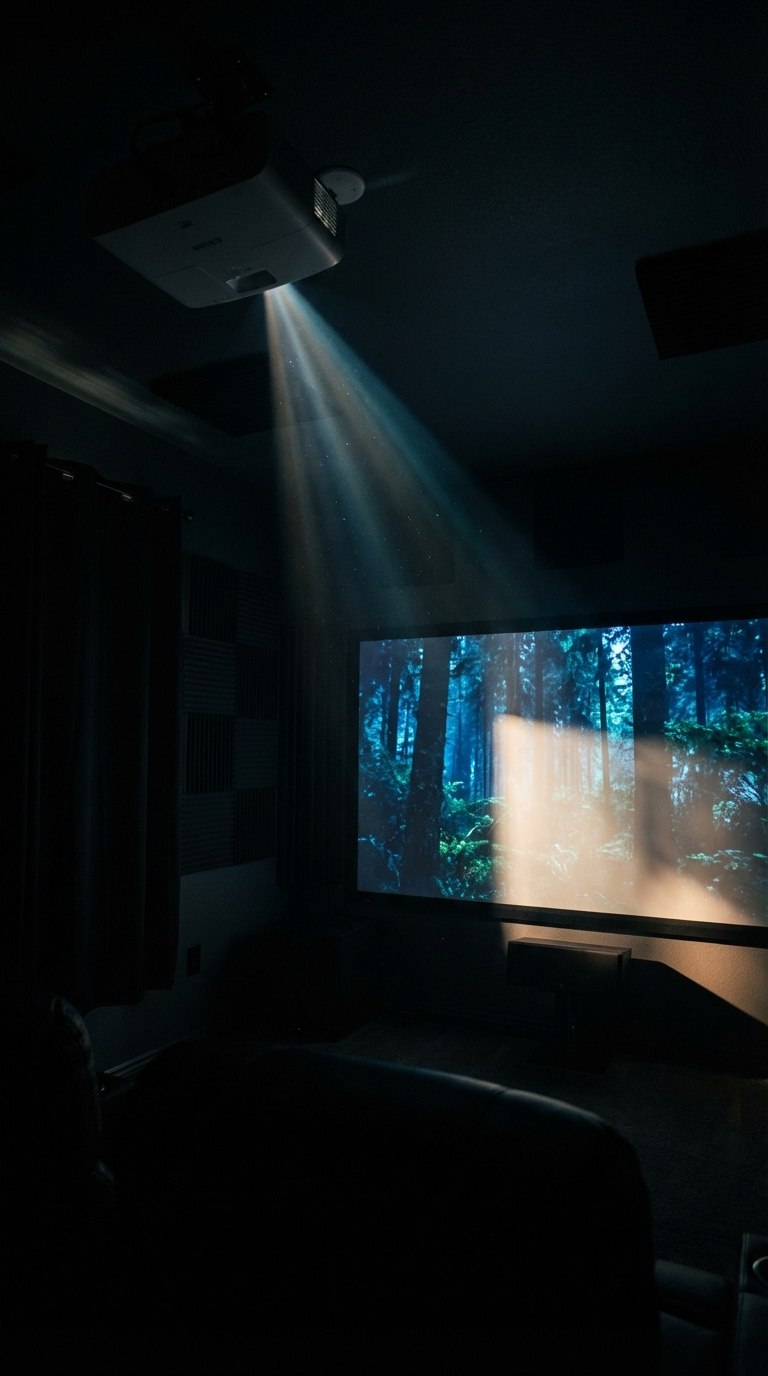
Don’t let bad lighting ruin your expensive projector’s image! Pin these tips.
Your projector is designed to work in a dark environment. Any stray light that hits your impact screen directly competes with the projector’s light, causing the image to look faded, washed-out, and low-contrast. Protecting your projected image is a primary goal of your lighting plan. This involves not only careful placement but also treating the room’s surfaces to absorb light rather than reflect it. This is a best practice taken directly from professional home theater lighting design.
Supplies Needed
- Directional light fixtures (track or gimbal lights)
- Dark, matte paint for ceiling and walls
- (Optional) Black felt or fabric
Step-by-Step Prevention Plan
- Strictly Overhead Placement: As detailed in H3 #6, ensure your primary hitting area lights are directly above or slightly in front of the ball. This is the most important step.
- Use Directional Fixtures: Avoid bare bulbs or wide-angle flood lights that spray light everywhere. Use track heads, gimbals, or spotlights with baffles that contain and direct the light.
- Paint Your Ceiling and Walls Dark: Paint the ceiling and any walls near the screen with a dark, non-reflective (matte or flat) paint. Dark gray or black is ideal. This absorbs stray light instead of bouncing it onto your screen.
- Create a “Light Cave”: For the ultimate performance, treat the first 4-6 feet of ceiling and walls out from the screen with black felt or velvet-like fabric. This creates a “black hole” for light and dramatically boosts image contrast.
Pro-Tip: Even the light reflecting off a white shirt can be enough to wash out a projector image. By ensuring your primary hitting zone is the only thing brightly lit, you minimize bounce and protect your image quality, a lesson taken directly from professional video production studios.

Key Takeaways: Your Quick Guide to Golf Simulator Room Lighting
- Flicker-Free is Non-Negotiable: Your high-speed camera will see flicker from standard LEDs, causing banding and blur in swing videos. Always purchase lights specifically labeled “flicker-free.”
- Placement Over Power: The correct placement of lights is more important than their brightness. Position task lights directly over or just in front of the hitting area to eliminate shadows on the screen.
- Zone Your Lighting: Use separate switches for “Hitting Area” lights and “Ambient Room” lights. Only the hitting area lights should be on during play to prevent projector washout.
- Control Reflections: Use directional fixtures and paint your ceiling/walls a dark, matte color near the screen. This absorbs stray light and dramatically improves projector contrast.
- Mind Your CCT & CRI: For the most accurate camera performance, choose a neutral Color Temperature (CCT) of 4000K-5000K and a high Color Rendering Index (CRI) of 90+.
People Also Ask About Golf Simulator Room Lighting
How bright should golf simulator lighting be?
Your hitting area should be lit to approximately 50-100 foot-candles (500-1000 lux). This is bright enough for high-speed cameras to capture clear detail without requiring an excessive number of fixtures. It’s more important to have dimmable lights you can adjust than to have overpowering brightness, as too much light can cause bounce and glare issues.
Where should lights be placed in a golf simulator?
The primary lights should be placed on the ceiling directly above or up to one foot in front of your hitting position. This specific placement illuminates you and the ball perfectly while casting your shadow behind you, away from the impact screen. Any additional ambient lighting should be placed behind the hitting area.
Can you use regular LED lights in a golf simulator?
It is strongly recommended not to use regular LED lights for the hitting area. Most standard residential LEDs flicker at a rate that is invisible to the human eye but creates ugly black bands on high-speed camera footage. You must use specialty “flicker-free” LEDs for clear swing capture.
How do you light a golf simulator room with low ceilings?
For low ceilings (under 9 feet), use fixtures with a wider beam angle and a flush or low-profile design. Recessed gimbal lights are an excellent choice as they don’t hang down. If using track lighting, select short “pendant” connectors or mount the track directly to the ceiling. A wider beam spread will provide better coverage from a shorter distance.
What color temperature is best for simulator lighting?
A neutral to cool white color temperature of 4000K to 5000K is best for golf simulator cameras. This range mimics natural daylight and ensures that colors appear accurate and vibrant in your swing videos. Avoid warm, yellow lights (under 3000K) for your primary hitting zone as they can distort colors.
How do I stop my shadow from showing on the golf simulator screen?
You can stop your shadow by ensuring your primary light source is positioned in front of your body. Mount your spotlights or track lighting on the ceiling directly above the golf ball. This causes the light to come down and slightly back, casting your shadow behind you and away from the screen.
How many lights do you need for a golf simulator room?
For a typical hitting area, 2 to 4 focused spotlights or track heads are sufficient. The goal is to create a concentrated pool of bright, even light over the mat. The exact number depends on the light output (lumens) and beam angle of your chosen fixtures. It’s better to start with fewer, high-quality lights than many cheap ones.
Do I need a spotlight for my golf simulator?
Yes, a spotlight or multiple focused lights are essential for a good golf simulator setup. You need a “task light” to specifically illuminate the hitting area for the cameras. General ambient room lighting is not sufficient and will result in a dark, poor-quality image and potential camera misreads.
How do you prevent projector washout from lighting?
Prevent washout by controlling light spill and ensuring no direct light hits the screen. Use directional lights aimed only at the hitting area, turn off all other ambient lights during play, and paint the ceiling and walls near the screen a dark, matte color to absorb reflections.
Does golf simulator lighting have to be expensive?
No, but you should budget for quality where it counts. The most critical investment is in truly flicker-free light fixtures for the hitting area. You can save money with DIY-friendly options like plug-in track lighting and by using standard, less expensive LEDs for your secondary ambient lighting zones that are turned off during play.
Final Thoughts on Your Golf Simulator Room Lighting
Ultimately, your golf simulator room lighting is a crucial piece of high-performance equipment, just like your launch monitor and projector. Treating it as an afterthought is the most common path to disappointing results and costly revisions. By implementing these tested and verified solutions, you are not just installing lights; you are building a controlled visual environment where every component can perform as intended.
A well-designed system that uses flicker-free technology, precise placement, and zoned controls will deliver crisp swing videos, eliminate distracting shadows, and produce a vibrant, immersive projected image. You now have the blueprint to get it right the first time. Which lighting strategy are you planning to use in your build?
Last update on 2026-01-16 / Affiliate links / Images from Amazon Product Advertising API
